
How to add a sidebar in WordPress
A WordPress sidebar is a powerful real estate tool designed to house widgets, navigation menus, and strategic calls-to-action. When used effectively, it streamlines the user journey and polishes your site’s aesthetic. Whether you are looking to inject new functionality or strip away clutter to embrace a minimalist look, mastering sidebar management is key to a professional layout.
This guide explores three primary methods to customize your sidebar: the WordPress Customizer, the Block Widget editor, and specialized Theme Options.
One tip before you make any changes (and we this this when we cost maintenance of websites) back up your site.
The WordPress Customizer
The Customizer is the best “live” way to see changes as you make them. It provides a real-time preview of your layout before you hit publish.
-
Navigate to Appearance > Customize in your dashboard.
-
Look for the Widgets tab.
-
Select the specific sidebar area you wish to modify.
-
Rearrange, add, or delete blocks to see how they impact your design instantly.
The Block Widget Editor
For a more focused workspace, the dedicated Widget menu allows for deep customization using the same Gutenberg block system you use for posts and pages.
-
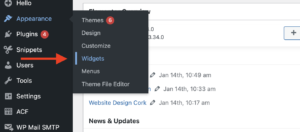
Go to Appearance > Widgets.
-
To Add: Click the (+) icon to insert anything from search bars and latest posts to custom HTML and image galleries.
-
To Remove: Click on an existing block and select the three-dot menu to delete it.
-
To Organize: Simply drag and drop blocks between different sidebar sections.
Theme-Specific Options
Many modern themes offer “Global” settings that control the sidebar’s behavior across your entire site, such as its width or which side of the screen it appears on.
-
Check your specific Theme Settings (often found under a custom menu name in the left-hand sidebar).
-
Look for Layout or Sidebar settings.
-
Here, you can often toggle the sidebar on or off for specific pages, such as landing pages or full-width blog posts, to ensure your content always has the right focus.
1. Edit Sidebar via the WordPress Customizer
The WordPress Customizer is the most intuitive method for editing sidebars because it allows you to preview changes in real time before they go live.
Steps to Use the Customizer:
- Log in to your WordPress Dashboard.
- Navigate to Appearance → Customize.
- Click on Widgets.
- Select the Sidebar area you wish to modify.
- Add, remove, or drag-and-drop widgets to reorder them.
- Click Publish to save your changes.
2. Edit Sidebar from Widget Settings
If you prefer a structured backend interface, the Widgets panel in the dashboard provides a quick way to manage multiple sidebar areas simultaneously.
Steps to Edit from the Widgets Panel:
- Go to your WordPress Dashboard.
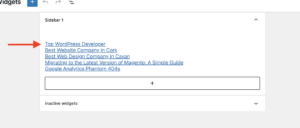
- Navigate to Appearance → Widgets.
- Locate your primary Sidebar section.
- Rearrange widgets by dragging them into your preferred order.
- Click on individual widgets to edit their specific settings or delete them.
- Click Update or Save to apply the changes.
3. Edit Sidebar Using Theme Options
Many premium themes include a dedicated Theme Options or Theme Panel. These tools often provide advanced control over sidebar visibility and global positioning.
How to Use Theme Options:
- Navigate to Appearance → Theme Options (this may be named specifically after your theme, e.g., “Astra Options” or “Avada”).
- Locate the Sidebar Settings or Layout tab.
- Toggle sidebar positions (left, right, or dual) or enable specific sidebars for different post types.
- Save your settings.
4. Remove or Disable a Sidebar
To create a full-width layout and hide the sidebar entirely, follow these steps:
- Go to Appearance → Customize.
- Search for Layout Settings or Page Settings.
- Select the Full-Width or No Sidebar layout.
- Click Publish.
Alternatively, you can disable the sidebar on a per-page basis. In the Page Editor, look for the Template or Page Attributes section and select a “Full Width” or “No Sidebar” template.
Concluding remarks
Customizing your WordPress sidebar helps direct user attention to your most important content. While the Customizer and Widgets panel work for most sites, complex layouts might require a page builder like Elementor or custom CSS. Choose the method that best aligns with your theme’s capabilities and your design goals.
Need professional help managing your site? Get expert WordPress support today!